P10 Game Controllers system upgrade process

Preparation before upgrade:

1. Before upgrading the controller, the controller should not be clicked on any codes. Ideally, it should be in a state of just being turned on and without any operation.

2. During the controller upgrade process, do not run the upgrade app in the background and do not turn off your phone screen.

Step 1
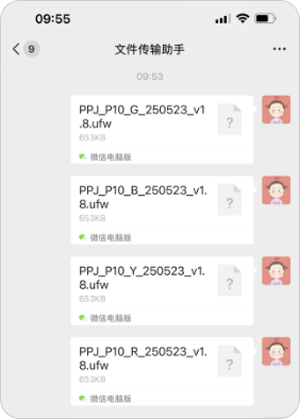
  Download the corresponding firmware resources by clicking the "Download Now" button, or by contacting our WeChat customer service for forwarding.. The four colored controllers correspond to four different firmware. Download the upgrade firmware as follows:
Step 2
  If you downloaded the upgrade firmware yourself, you need to share the files to the WeChat File Transfer Assistant.
Step 3
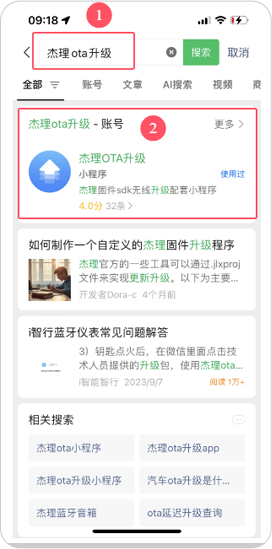
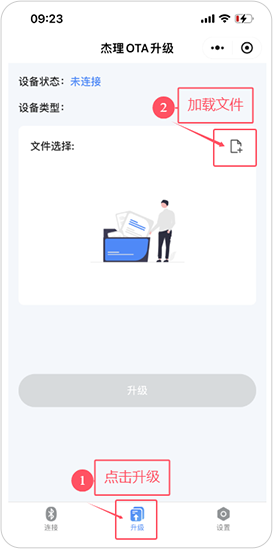
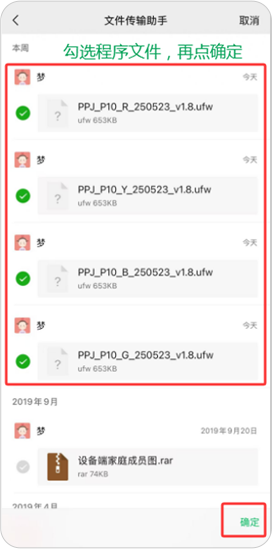
   Search for the "杰理OTA升级" mini-program on WeChat, as shown in Figure 1. Click “Upgrade”, then click “Load File” -- find the files from the Wechat file transfer assistant/customer service, and select all the files and click to import.
1.Search for the "杰理OTA升级" mini-program on WeChat
Click "Upgrade"①,then click"Load File②
3.Select all the files and click to import.
Step 4
   Turn on the controller, then click to connect in the "杰理OTA升级"" mini-program. The controller's Bluetooth will be detected. The corresponding Bluetooth name for the controller is as follows:

Red controller: P10_R Blue controller: P10_B

Yellow controller: P10_Y Green controller: P10_G

Find the controller you want to upgrade in the list and click "Connect".
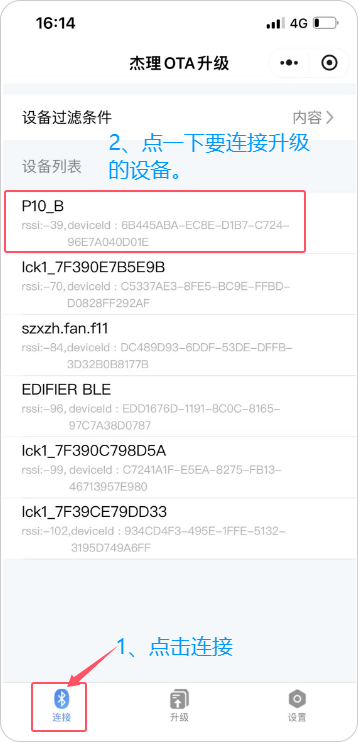
1.click "Connect".
2.Click the controller you want to connect for upgrade.
Step 5
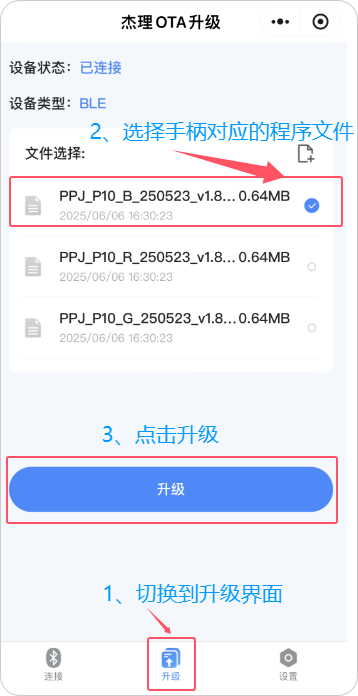
   Click "Upgrade," to select the corresponding firmware file, and the file name for the controller is as follows:

Red controller:PPJ_P10_R_250523_v1.8.ufw

Blue controller:PPJ_P10_B_250523_v1.8.ufw

Yellow controller:PPJ_P10_Y_250523_v1.8.ufw

Green controller:PPJ_P10_G_250523_v1.8.ufw

After selecting the corresponding file, click "Upgrade" to automatically upgrade.
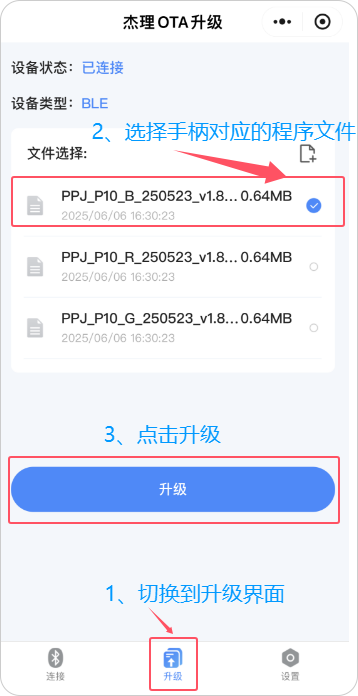
1.Switch to the Upgrade page
2.Select the corresponding firmware file for the controller
3.Click to Upgrade
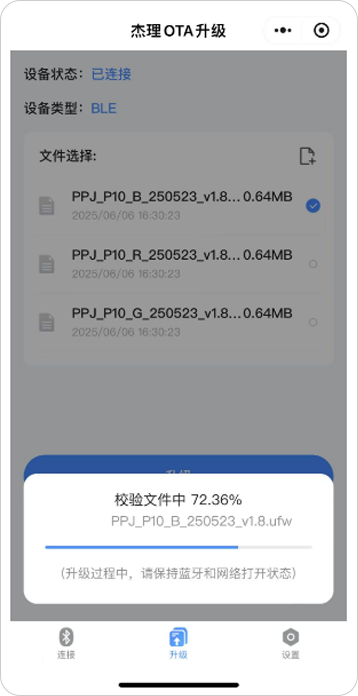
Note: Do not turn off Bluetooth and the controller during the upgrade process, otherwise the upgrade will fail!

If you encounter an upgrade failure during the normal upgrade process, please see the following instructions for re-upgrading.
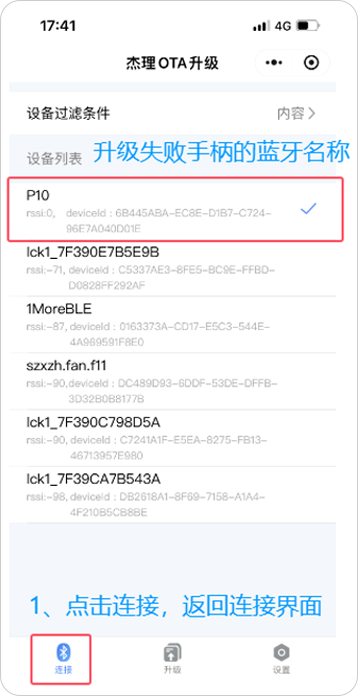
How to upgrade again after upgrade failure
After the upgrade fails, the controller’s indicator light will not light up. At this time, the controller's Bluetooth name will change to: P10. At this point, start the upgrade process again from step 4: Click “connect”, connect to the Bluetooth device named P10, and then proceed with the upgrade.
If the upgrade fails, the controller's Bluetooth name will change to: P10
1.click "Connect". To back to the connection page
1.Switch to the Upgrade page
2.Select the corresponding firmware file for the controller
3.Click to Upgrade